



Introduction
A good tool is essential to maintain the quality of the work one delivers. A good squeegee determines the success of every screen printing task. The success of your screen printing job depends a lot on choosing and using the right squeegee. Selecting the right squeegee helps every screen printer get better results. To understand squeegee basics, you need to know its purpose. You should also learn to choose and set up a screen printing squeegee. Maintaining it in good condition is essential.
The essential function of a screen printing squeegee
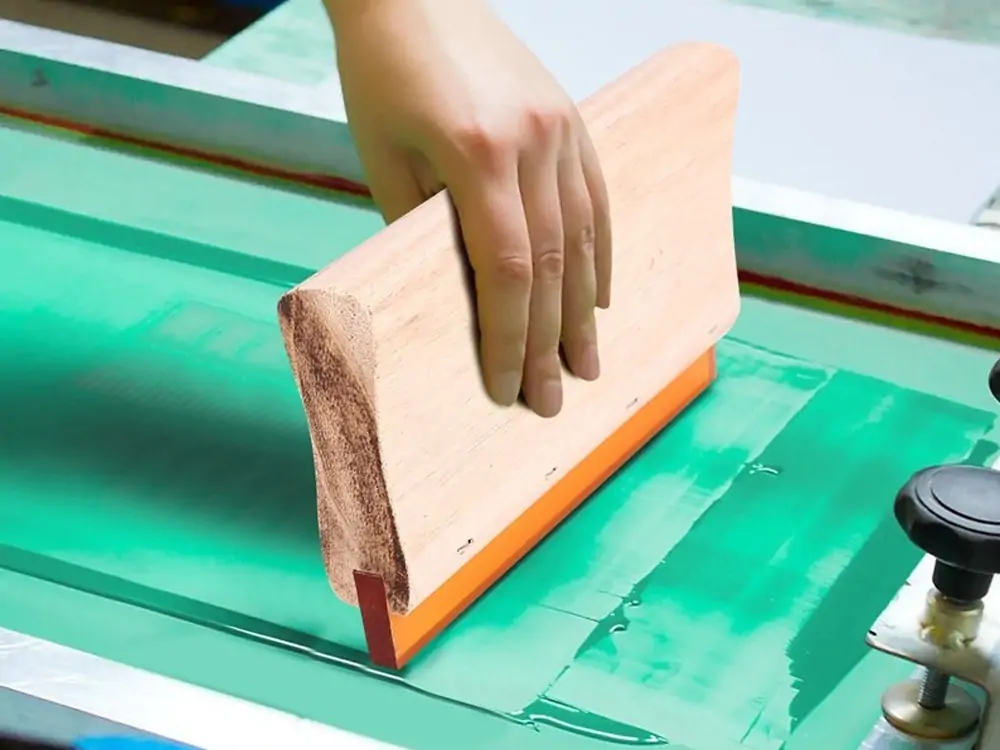
A squeegee consists of a handle with a blade for easy handling. The tool pushes ink across the screen mesh, transferring it to fabric or other printing surfaces. It pushes ink through the stencil’s open areas to print. The right features affect how well they push ink through the mesh stencil. This also influences how ink transfers to the surface. Picking the wrong squeegee or setting it up incorrectly can ruin a great print job.
A Quick History of Squeegees
At its origin, the word “squeegee” refers to a window-cleaning tool. In the early 1900s, commercial screen printing expanded. Screen printers started using the squeegee tool. Over the years, the basic window-cleaning squeegee was made explicitly for printing needs. Manufacturers now create special squeegees for different ink types. These tools work on all surfaces and help keep printing fast. They also ensure a smooth printing process.
Types of squeegee blades
People use two basic forms of squeegee blades.
Flat Blade
- The flat blade features a straight, strong cutting edge.
- Flat surfaces of any hardness need this type of blade.
- The blade pushes ink evenly across the surface because its smooth edge moves it forward.
Sharp (Pointed) Blade
- A sharp blade requires little force because its edge becomes softer in that area.
- The sharp edge handles flat and rough surfaces without sticking.
- The soft surface glides over small surface changes without leaving missed spots.
- Special printing tasks must use a round-shaped blade.
- Squeegee blade material and hardness.
Most squeegee blades are made of polyurethane. The material works great for every task. It bends well, withstands impacts, and resists chemicals. The hardness of the squeegee blade, or durometer, influences ink transfer in printing.
Soft (60 durometer)
It is more flexible and lays down more ink. Soft squeegees push light ink colors into heavy black background prints well.
Medium (70-75 durometer)
It’s a good all-around option. This tool works well for nearly every printing process and all types of ink products.
Hard (80-90 durometer)
- Hard squeegees deliver a thinner ink film, resulting in better absorption. This squeegee type is excellent for complex designs that need dense ink patterns. Most screens use just one color.
- Printing shops carry a range of durometer types to meet various printing needs.
Squeegee Holder (Handle) Types
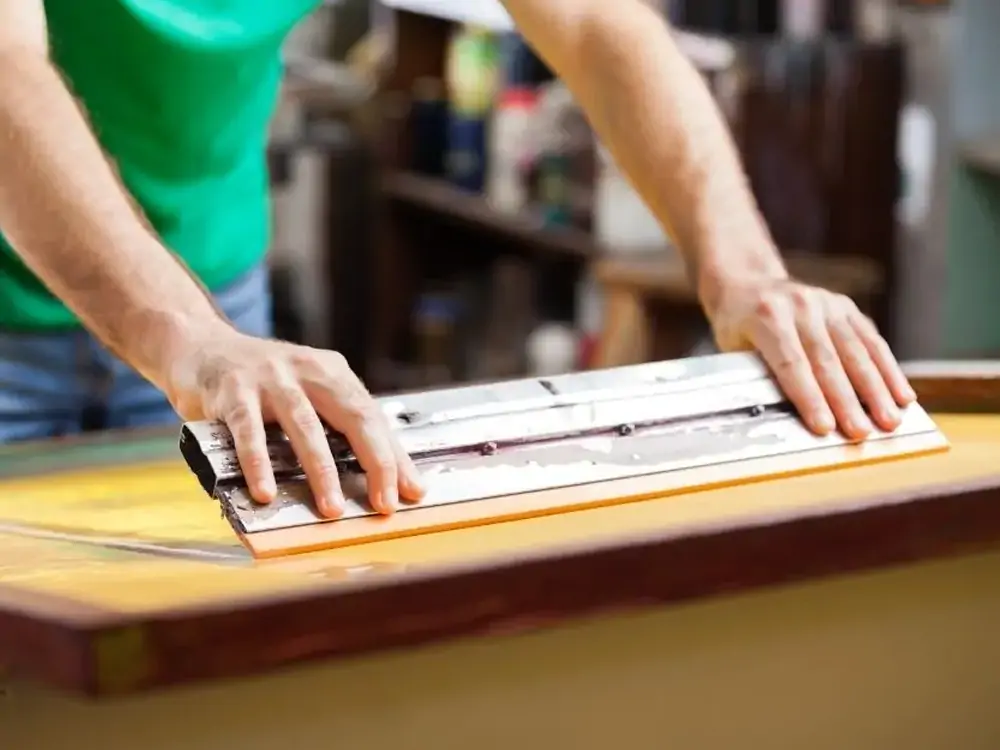
You attach squeegee blades to their handling tool, which we call a squeegee handle. These come in different types:
Manual Handheld Holders
- Basic wooden, plastic, or aluminum holders for manual printing.
- Adjustable Squeegee Holders
- The device works with different blade types for various thicknesses and hardness levels. It also lets you adjust the angle.
Machine-Mounted Holders
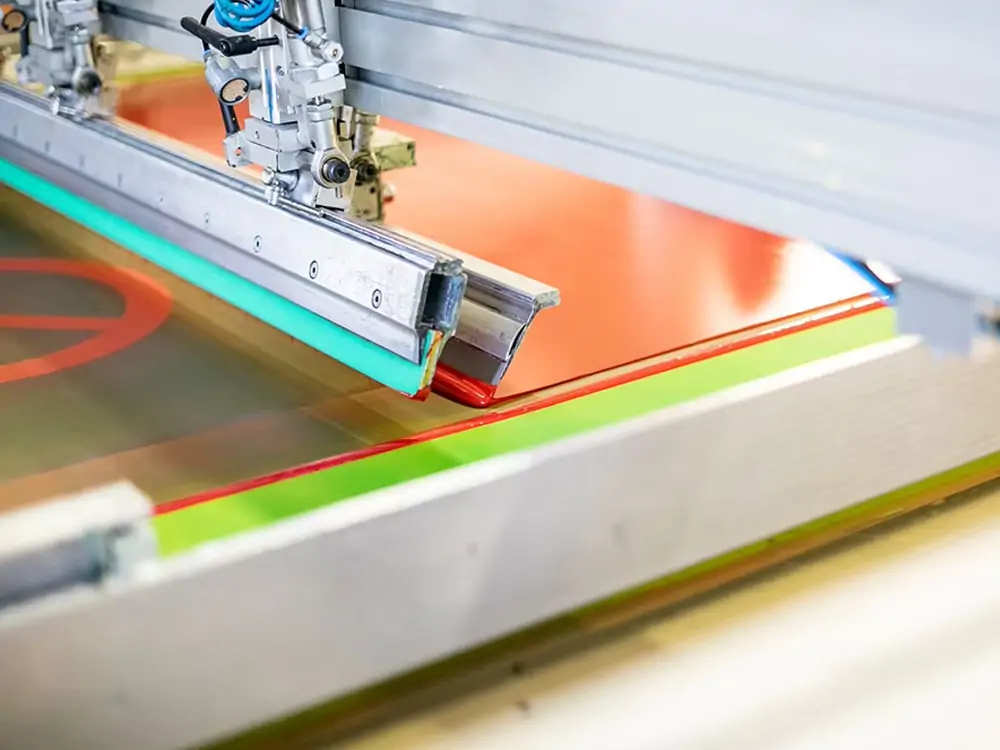
Once-Tech screen printing machines are used in automated and semi-automatic printing operations. The devices have different blade pressure settings and angles. This helps ensure consistent and reliable printing results.
Choosing the right holder is key in machine printing. If it’s not placed correctly, it can cause production flaws.
How to Select the Right Squeegee
Consider these main points when selecting a squeegee for your work.
Surface Type:
Flat blades are for flat surfaces, and sharp blades are for curves or uneven surfaces.
Ink Type and Print Detail:
Softer blades are better for filling colorful strokes. A stiff blade is more effective at handling fine detail.
Print Size:
Bigger print sizes will need wider squeegees to reach every area.
Durometer:
You should pick soft or hard squeegees based on how you will use them—soft for wide coverage and hard for fine work.
Consider both your printing machine model and the preparation of your work. The operator manual states that automatic screen-printing machines require Once-Tech tooling. They also require
careful alignment settings.
Setting Up the Squeegee
roperly setting up the tools results in successful prints.
Follow these steps to set up and use your squeegee correctly:
1. Blade position and angle
Make sure the blade overlaps the printing area. The machine manual in Figure 6-6 says the blade should cover the entire image area with a 1-2-inch overlap on each side. The printer screen will not print clearly when the squeegee is incorrectly aligned.
2. Blade Pressure
Too much pressure will cause the ink to blur. If there’s not enough pressure, some areas will remain unprinted. Set blade force based on ink, material, and print design instructions. The standard pressure methods listed on your machine need to be followed.
3. Speed and Movement
When you apply squeegee speed that exceeds limits, the ink will shift unexpectedly. A slow movement can cause ink to spread across the surface. The Once-Tech printers have a control panel. Here, you can choose the right speed settings to ensure steady printing results.
4. Blade Height and Stroke Calibration
Move your squeegee up and down with the adjustment screws on your machine. Adjust the height and pressurize the squeegee. This helps it touch the screen without bending the blade.
Common Squeegee Mistakes to Avoid
Using the Wrong Durometer
Use softer blades for heavier ink deposits and harder blades for fine detail and lower ink deposits.
Wrong Angle
A blade that is too flat or too sharp will create print defects such as miss spots and smears.
Excessive Pressure
Applying greater force to the squeegee does not improve printing results. Excessive pressure causes ink overflow and damages screens more quickly.
Worn or Dirty Blades
Make it a habit to clean your squeegee immediately and regularly check its blade for any damage. Regular blade replacement helps avoid printing quality issues.
Maintaining Your Squeegee
Clean After Every Use:
Make it a habit to clean your squeegee immediately and regularly check its blade for any damage. Regular blade replacement helps avoid printing quality issues.
Check for Wear:
Check for nicks, rounding, or chipping on the blade. You are less likely to get good results if the tool produces uneven results when you use damaged squeegees.
Store Properly:
Set your squeegee blades flat on a cool surface to prevent damage.
Replace When Needed:
Squeegee blades stay sharp only for a limited period before failing. Get rid of the squeegee when it begins to bend, or its cutting edge becomes dull.
Conclusion
Although small, your squeegee controls how well your screen printer output will look. Your good prints depend on choosing the right blade, hardness, and holder style. Set the machine’s speed, pressure, and angle to the correct levels, and the squeegee will deliver an excellent performance. Perfect your squeegee settings for flat or curved surfaces.
Get high-quality screen-printing squeegees and squeegee expertise at Once-Tech.com. We provide all the tools to keep your printing process running smoothly.
